
Docker Examples
Butler Sheet Icons is available as a Docker image, making it perfect for containerized environments, CI/CD pipelines, and server deployments.
The official image includes an embedded Chromium browser, so it needs no internet access at all. For a runbook covering how to get the image onto a server with no internet access and how to verify it before going near production, see Air-gapped environments. For a detailed explanation of how browsers are detected and how to override the embedded browser, see Browser detection and environment variables.
Docker Image Information
- Image:
ptarmiganlabs/butler-sheet-icons:latest - Base: Linux (Alpine-based)
- Platforms: AMD64, ARM64
- Registry: Docker Hub
For what the image contains besides Butler Sheet Icons, and where to find the licences of that software, see What is inside the image.
Basic Usage
Help and Version Information
Check the available commands:
docker run --rm ptarmiganlabs/butler-sheet-icons:latest --helpdocker run --rm ptarmiganlabs/butler-sheet-icons:latest --helpCheck the version:
docker run --rm ptarmiganlabs/butler-sheet-icons:latest --versiondocker run --rm ptarmiganlabs/butler-sheet-icons:latest --versionQS Cloud Examples
Simple QS Cloud Update
docker run --rm \
  -v $(pwd)/images:/nodeapp/img \
  ptarmiganlabs/butler-sheet-icons:latest \
  qscloud create-sheet-icons \
  --tenanturl mytenant.eu.qlikcloud.com \
  --apikey your-api-key \
  --logonuserid user@company.com \
  --logonpwd your-password \
  --appid 12345678-1234-1234-1234-123456789012 \
--imagedir ./imgdocker run --rm `
-v ${PWD}/images:/nodeapp/img `
ptarmiganlabs/butler-sheet-icons:latest `
qscloud create-sheet-icons `
--tenanturl mytenant.eu.qlikcloud.com `
--apikey your-api-key `
--logonuserid user@company.com `
--logonpwd your-password `
--appid 12345678-1234-1234-1234-123456789012 `
--imagedir ./imgQS Cloud with Environment Variables
# Set environment variables
export BSI_TENANT_URL="mytenant.eu.qlikcloud.com"
export BSI_API_KEY="your-api-key"
export BSI_USER_ID="user@company.com"
export BSI_PASSWORD="your-password"
export BSI_APP_ID="12345678-1234-1234-1234-123456789012"

# Run with environment variables
docker run --rm \
  -v $(pwd)/images:/nodeapp/img \
  -e BSI_QSCLOUD_CST_TENANTURL="$BSI_TENANT_URL" \
  -e BSI_QSCLOUD_CST_APIKEY="$BSI_API_KEY" \
  -e BSI_QSCLOUD_CST_LOGON_USER_ID="$BSI_USER_ID" \
  -e BSI_QSCLOUD_CST_LOGON_PWD="$BSI_PASSWORD" \
  -e BSI_QSCLOUD_CST_APP_ID="$BSI_APP_ID" \
  ptarmiganlabs/butler-sheet-icons:latest \
  qscloud create-sheet-icons \
--imagedir ./img# Set environment variables
$env:BSI_TENANT_URL = "mytenant.eu.qlikcloud.com"
$env:BSI_API_KEY = "your-api-key"
$env:BSI_USER_ID = "user@company.com"
$env:BSI_PASSWORD = "your-password"
$env:BSI_APP_ID = "12345678-1234-1234-1234-123456789012"
# Run with environment variables
docker run --rm `
-v ${PWD}/images:/nodeapp/img `
-e BSI_QSCLOUD_CST_TENANTURL="$env:BSI_TENANT_URL" `
-e BSI_QSCLOUD_CST_APIKEY="$env:BSI_API_KEY" `
-e BSI_QSCLOUD_CST_LOGON_USER_ID="$env:BSI_USER_ID" `
-e BSI_QSCLOUD_CST_LOGON_PWD="$env:BSI_PASSWORD" `
-e BSI_QSCLOUD_CST_APP_ID="$env:BSI_APP_ID" `
ptarmiganlabs/butler-sheet-icons:latest `
qscloud create-sheet-icons `
--imagedir ./imgQSEoW Examples
QSEoW with Certificate Volume Mount
docker run --rm \
  --name butler-sheet-icons \
  -v $(pwd)/images:/nodeapp/img \
  -v $(pwd)/cert:/nodeapp/cert \
  ptarmiganlabs/butler-sheet-icons:latest \
  qseow create-sheet-thumbnails \
  --host qlik-server.company.com \
  --appid a3e0f5d2-000a-464f-998d-33d333b175d7 \
  --apiuserdir Internal \
  --apiuserid sa_api \
  --logonuserdir Internal \
  --logonuserid your-username \
  --logonpwd your-password \
  --contentlibrary "Butler sheet thumbnails" \
  --sense-version 2025-May \
--imagedir ./imgdocker run --rm `
--name butler-sheet-icons `
-v ${PWD}/images:/nodeapp/img `
-v ${PWD}/cert:/nodeapp/cert `
ptarmiganlabs/butler-sheet-icons:latest `
qseow create-sheet-thumbnails `
--host qlik-server.company.com `
--appid a3e0f5d2-000a-464f-998d-33d333b175d7 `
--apiuserdir Internal `
--apiuserid sa_api `
--logonuserdir Internal `
--logonuserid your-username `
--logonpwd your-password `
--contentlibrary "Butler sheet thumbnails" `
--sense-version 2025-May `
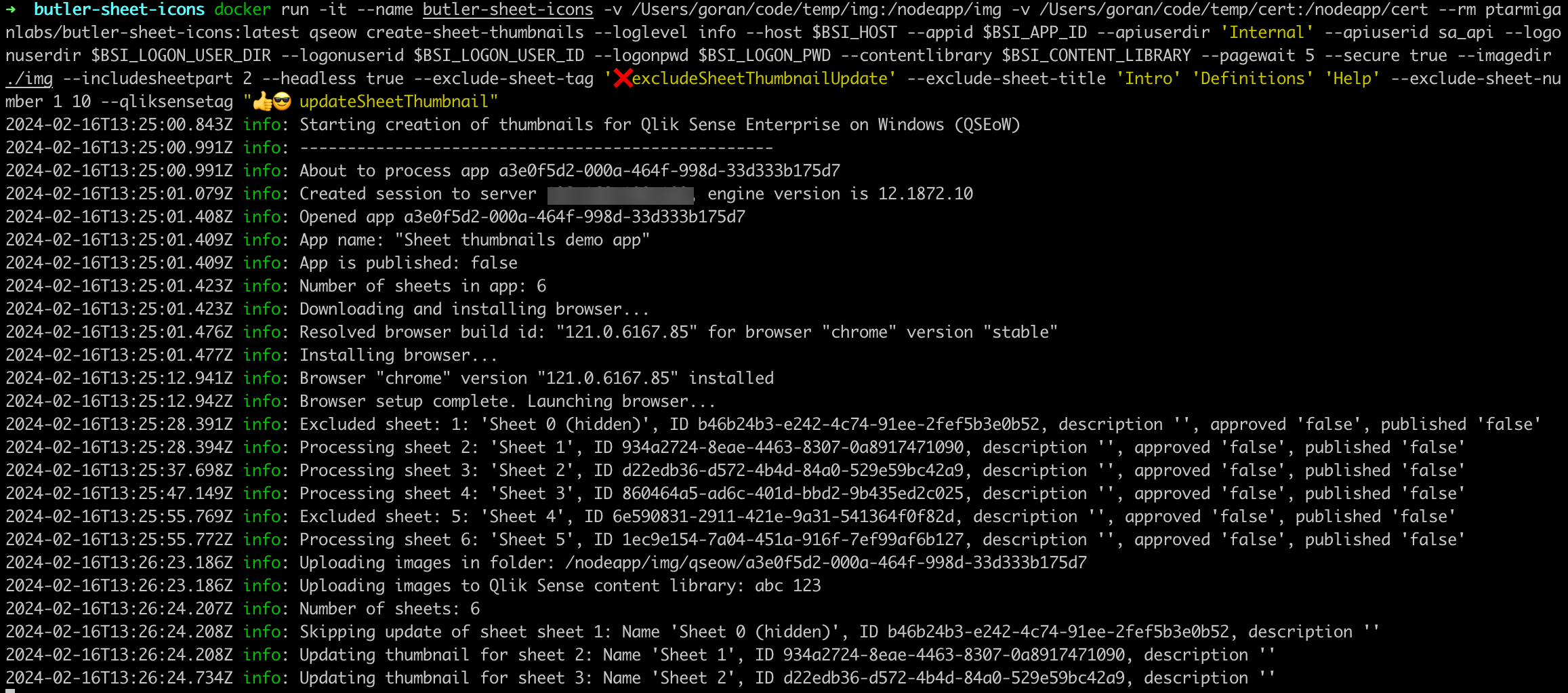
--imagedir ./imgExample QSEoW Execution
Here's what a QSEoW Docker execution looks like:
QSEoW with Tag-Based Updates
docker run --rm \
  -v $(pwd)/images:/nodeapp/img \
  -v $(pwd)/cert:/nodeapp/cert \
  ptarmiganlabs/butler-sheet-icons:latest \
  qseow create-sheet-thumbnails \
  --host qlik-server.company.com \
  --apiuserdir Internal \
  --apiuserid sa_api \
  --logonuserdir Internal \
  --logonuserid your-username \
  --logonpwd your-password \
  --qliksensetag "updateSheetThumbnails" \
  --exclude-sheet-tag "excludeFromThumbnails" \
  --sense-version 2024-May \
  --contentlibrary "Butler sheet thumbnails" \
  --pagewait 5 \
--imagedir ./imgdocker run --rm `
-v ${PWD}/images:/nodeapp/img `
-v ${PWD}/cert:/nodeapp/cert `
ptarmiganlabs/butler-sheet-icons:latest `
qseow create-sheet-thumbnails `
--host qlik-server.company.com `
--apiuserdir Internal `
--apiuserid sa_api `
--logonuserdir Internal `
--logonuserid your-username `
--logonpwd your-password `
--qliksensetag "updateSheetThumbnails" `
--exclude-sheet-tag "excludeFromThumbnails" `
--sense-version 2024-May `
--contentlibrary "Butler sheet thumbnails" `
--pagewait 5 `
--imagedir ./imgVolume Mounts
Required Volumes
Images Directory: Where screenshots are saved
bash-v $(pwd)/images:/nodeapp/imgpowershell-v ${PWD}/images:/nodeapp/imgCertificates (QSEoW only): QSEoW certificates
bash-v $(pwd)/cert:/nodeapp/certpowershell-v ${PWD}/cert:/nodeapp/cert
Directory Structure
Your local directory should look like:
project/
├── images/          # Will contain generated screenshots
├── cert/           # QSEoW certificates (if needed)
│   ├── client.pem
│   └── client_key.pem
└── run-docker.sh   # Your Docker run script
Docker Compose
QS Cloud Example
Create docker-compose.yml:
services:
  butler-sheet-icons:
    image: ptarmiganlabs/butler-sheet-icons:latest
    container_name: butler-sheet-icons
    volumes:
      - ./images:/nodeapp/img
    environment:
      - BSI_QSCLOUD_CST_TENANTURL=mytenant.eu.qlikcloud.com
      - BSI_QSCLOUD_CST_APIKEY=${API_KEY}
      - BSI_QSCLOUD_CST_LOGON_USER_ID=${USER_ID}
      - BSI_QSCLOUD_CST_LOGON_PWD=${PASSWORD}
      - BSI_QSCLOUD_CST_APP_ID=${APP_ID}
    command:
      [
        "qscloud",
        "create-sheet-icons",
        "--imagedir",
        "./img",
        "--pagewait",
        "5",
        "--loglevel",
        "info",
]Create .env file:
API_KEY=your-api-key-here
USER_ID=user@company.com
PASSWORD=your-password
APP_ID=12345678-1234-1234-1234-123456789012
Run with:
docker-compose updocker-compose upQSEoW Example
services:
  butler-sheet-icons:
    image: ptarmiganlabs/butler-sheet-icons:latest
    container_name: butler-sheet-icons-qseow
    volumes:
      - ./images:/nodeapp/img
      - ./cert:/nodeapp/cert
    environment:
      - BSI_QSEOW_CST_HOST=qlik-server.company.com
      - BSI_QSEOW_CST_API_USER_DIR=Internal
      - BSI_QSEOW_CST_API_USER_ID=sa_api
      - BSI_QSEOW_CST_LOGON_USER_DIR=Internal
      - BSI_QSEOW_CST_LOGON_USER_ID=${LOGON_USER}
      - BSI_QSEOW_CST_LOGON_PWD=${LOGON_PASSWORD}
      - BSI_QSEOW_CST_SENSE_VERSION=2025-May
    command:
      [
        "qseow",
        "create-sheet-thumbnails",
        "--appid",
        "${APP_ID}",
        "--imagedir",
        "./img",
        "--contentlibrary",
        "Butler sheet thumbnails",
]CI/CD Integration
GitHub Actions Example
name: Update Sheet Thumbnails

on:
  schedule:
    - cron: "0 2 * * *" # Daily at 2 AM
  workflow_dispatch:

jobs:
  update-thumbnails:
    runs-on: ubuntu-latest

    steps:
      - name: Checkout
        uses: actions/checkout@v3

      - name: Create output directory
        run: mkdir -p images

      - name: Update QS Cloud Thumbnails
        run: |
          docker run --rm \
            -v ${{ github.workspace }}/images:/nodeapp/img \
            ptarmiganlabs/butler-sheet-icons:latest \
            qscloud create-sheet-icons \
            --tenanturl ${{ secrets.QS_TENANT_URL }} \
            --apikey ${{ secrets.QS_API_KEY }} \
            --logonuserid ${{ secrets.QS_USER_ID }} \
            --logonpwd ${{ secrets.QS_PASSWORD }} \
            --collectionid ${{ secrets.QS_COLLECTION_ID }} \
            --imagedir ./img \
            --loglevel info

      - name: Archive thumbnail
        uses: actions/upload-artifact@v3
        with:
          name: sheet-thumbnails
path: images/Kubernetes Deployment
Use args:, never command:
In Kubernetes, command: replaces the image's entrypoint and args: replaces its arguments. Butler Sheet Icons does real work in its entrypoint — it decides which user to run as, based on who owns the directory the thumbnails are written to, and makes sure that user has a usable home directory.
A manifest that sets command: skips all of that, and also has to name the application's path inside the image correctly. Get it slightly wrong and the pod exits immediately:
Error: Cannot find module '/nodeapp/butler-sheet-icons.js'Put the Butler Sheet Icons command in args: instead, exactly as you would type it after docker run. The examples below do that.
This is the one place where Kubernetes and Docker Compose disagree. The command: used in the Docker Compose examples above is correct there — in Compose it supplies the arguments, which is what Kubernetes calls args:. Same word, different meaning.
Job Example
apiVersion: batch/v1
kind: Job
metadata:
  name: butler-sheet-icons-job
spec:
  template:
    spec:
      containers:
        - name: butler-sheet-icons
          image: ptarmiganlabs/butler-sheet-icons:4.0.0
          args:
            - "qscloud"
            - "create-sheet-thumbnails"
            - "--imagedir"
            - "./img"
          env:
            - name: BSI_QSCLOUD_CST_TENANTURL
              valueFrom:
                secretKeyRef:
                  name: qlik-credentials
                  key: tenant-url
            - name: BSI_QSCLOUD_CST_APIKEY
              valueFrom:
                secretKeyRef:
                  name: qlik-credentials
                  key: api-key
            - name: BSI_QSCLOUD_CST_LOGON_USER_ID
              valueFrom:
                secretKeyRef:
                  name: qlik-credentials
                  key: user-id
            - name: BSI_QSCLOUD_CST_LOGON_PWD
              valueFrom:
                secretKeyRef:
                  name: qlik-credentials
                  key: password
            - name: BSI_QSCLOUD_CST_COLLECTION_ID
              valueFrom:
                configMapKeyRef:
                  name: qlik-config
                  key: collection-id
          volumeMounts:
            - name: images-volume
              mountPath: /nodeapp/img
      volumes:
        - name: images-volume
          emptyDir: {}
      restartPolicy: Never
  backoffLimit: 3
The thumbnails do not need to survive the pod
emptyDir is thrown away when the pod ends, which is fine here. Butler Sheet Icons uploads each thumbnail to Qlik Sense as it goes — the files on disk are working copies, not the result. Mount something durable only if you also want to keep the images yourself.
CronJob Example
apiVersion: batch/v1
kind: CronJob
metadata:
  name: butler-sheet-icons-cronjob
spec:
  schedule: "0 2 * * *" # Daily at 2 AM
  jobTemplate:
    spec:
      template:
        spec:
          containers:
            - name: butler-sheet-icons
              image: ptarmiganlabs/butler-sheet-icons:4.0.0
              args:
                - "qscloud"
                - "create-sheet-thumbnails"
                - "--imagedir"
                - "./img"
              env:
                - name: BSI_QSCLOUD_CST_TENANTURL
                  valueFrom:
                    secretKeyRef:
                      name: qlik-credentials
                      key: tenant-url
              # ... other environment variables
              volumeMounts:
                - name: images-volume
                  mountPath: /nodeapp/img
          volumes:
            - name: images-volume
              emptyDir: {}
          restartPolicy: OnFailure
If a security policy forces a fixed user
Where securityContext.runAsUser is mandatory, the image detects that it was not started as root and hands straight over to the user you named. That is supported, but the container can then no longer adapt to the volume for you — it is up to you to make sure the account can write to the directory given by --imagedir.
Pin the image on anything scheduled
Both examples use :4.0.0 rather than :latest, so an unattended nightly job does not change version underneath you. See Decide which version you are approving for the full list of published tags.
Troubleshooting
Permission Issues
If you encounter permission errors with volume mounts:
# Fix ownership on Linux/macOS
sudo chown -R $(id -u):$(id -g) ./images ./cert

# Or run with user specification
docker run --rm --user $(id -u):$(id -g) \
  -v $(pwd)/images:/nodeapp/img \
  ptarmiganlabs/butler-sheet-icons:latest \
qscloud create-sheet-icons --help# Or run with a specific user inside the container if needed
docker run --rm `
-v ${PWD}/images:/nodeapp/img `
ptarmiganlabs/butler-sheet-icons:latest `
qscloud create-sheet-icons --helpBrowser Issues in Container
If the browser fails to start:
# Add security options for browser compatibility
docker run --rm \
  --security-opt seccomp=unconfined \
  --shm-size 2g \
  -v $(pwd)/images:/nodeapp/img \
  ptarmiganlabs/butler-sheet-icons:latest \
  qscloud create-sheet-icons \
  --tenanturl mytenant.eu.qlikcloud.com \
  --apikey your-api-key \
  --logonuserid user@company.com \
  --logonpwd your-password \
--appid your-app-id# Add security options for browser compatibility (Windows)
docker run --rm `
--security-opt seccomp=unconfined `
--shm-size 2g `
-v ${PWD}/images:/nodeapp/img `
ptarmiganlabs/butler-sheet-icons:latest `
qscloud create-sheet-icons `
--tenanturl mytenant.eu.qlikcloud.com `
--apikey your-api-key `
--logonuserid user@company.com `
--logonpwd your-password `
--appid your-app-idNetwork Issues
For corporate networks with proxies:
docker run --rm \
  -e http_proxy=http://proxy:8080 \
  -e https_proxy=http://proxy:8080 \
  -v $(pwd)/images:/nodeapp/img \
  ptarmiganlabs/butler-sheet-icons:latest \
  qscloud create-sheet-icons \
  --tenanturl mytenant.eu.qlikcloud.com \
  --apikey your-api-key \
  --logonuserid user@company.com \
  --logonpwd your-password \
--appid your-app-iddocker run --rm `
-e http_proxy=http://proxy:8080 `
-e https_proxy=http://proxy:8080 `
-v ${PWD}/images:/nodeapp/img `
ptarmiganlabs/butler-sheet-icons:latest `
qscloud create-sheet-icons `
--tenanturl mytenant.eu.qlikcloud.com `
--apikey your-api-key `
--logonuserid user@company.com `
--logonpwd your-password `
--appid your-app-id